GTA 6 Settings & Controls
The best GTA 6 settings for PS5 and Xbox: choose a setup - ours, the game default or a top GTA creator's - then turn on Only show changes to see just what's different, or pick any setting to see what it does.
Updated
On foot. Classic puts sprint back on X A , the way GTA 5 worked, and moves three other buttons with it. There is also a Left-Handed layout.
- Map Touchpad View
- Holster L1 LB
- Aim / Interact L2 LT
- Cellphone Up
- Radio Controls Left
- Objective / Minimap Down
- Detonate Explosives Right
- Run Crouch L3 LS
- Move L L
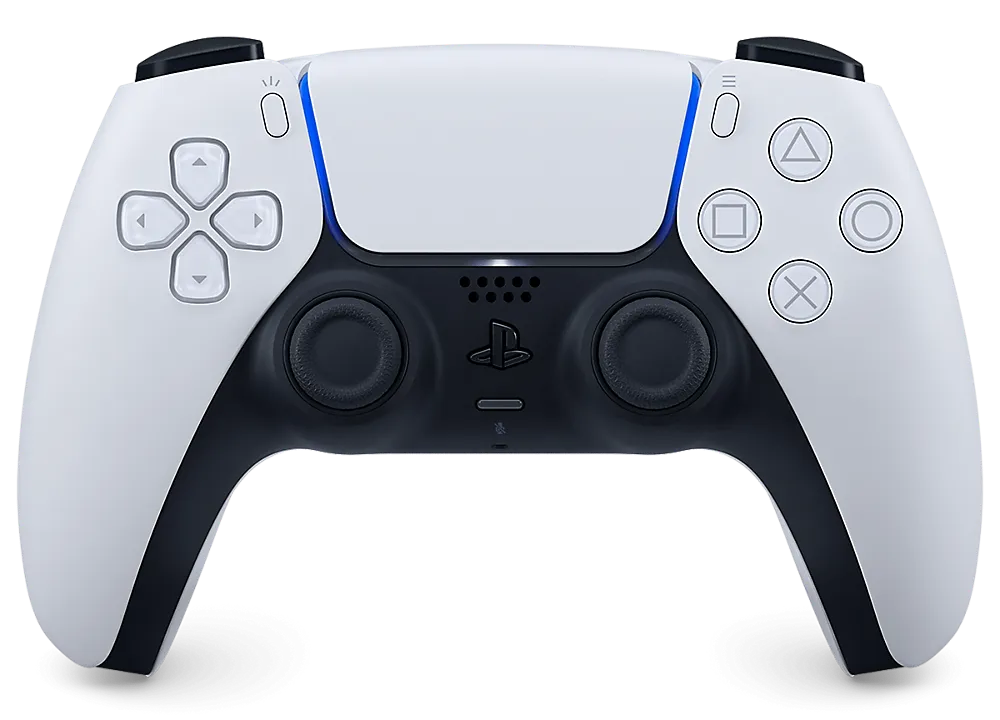
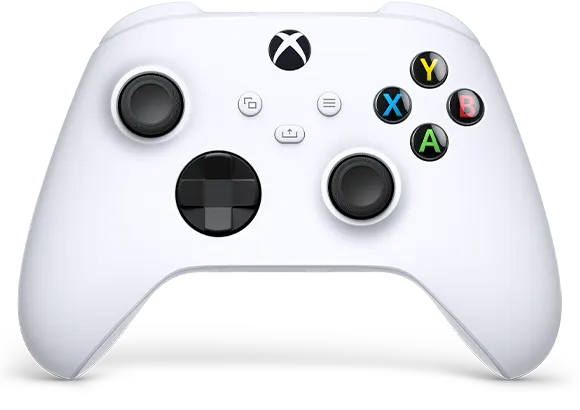
- Options Menu Pause
- R1 RB Cover
- R2 RT Shoot
- Triangle Y Interact
- Square X Melee Jump / Climb
- Circle B Crouch Melee
- X A Jump / Climb Run / Sprint
- R3 RS Look Behind
- R R Look
Controller images: Sony Interactive Entertainment and Microsoft
Aim & Look Sensitivity
-
Horizontal Look Sensitivity 7
Horizontal Look Sensitivity
How fast the camera turns left and right when you move R and are not aiming.
GTA6HYPE: 7. Raise it a step or two if the camera feels slow when you look around.
MrRoflWaffles: 7. He calls sensitivity personal preference and leaves it at 7.
DPJ: 9. The default felt slow. He tried 12 and 13, which were far too fast, and settled on 9.
Boomstick Gaming: 8.
-
Vertical Look Sensitivity 7
Vertical Look Sensitivity
How fast the camera tilts up and down when you move R and are not aiming.
GTA6HYPE: 7. Raise it a step or two if the camera feels slow when you look around.
MrRoflWaffles: 7. He calls sensitivity personal preference and leaves it at 7.
DPJ: 9. The default felt slow. He tried 12 and 13, which were far too fast, and settled on 9.
Boomstick Gaming: 6.
-
Horizontal Aim Sensitivity 7
Horizontal Aim Sensitivity
How fast your aim moves left and right while you hold L2 LT to aim.
GTA6HYPE: 7. Change it last, once the rest feels right - lower for steadier aim, higher for quicker.
MrRoflWaffles: 7. He calls sensitivity personal preference and leaves it at 7.
DPJ: 7. Left at the default. It feels right to him.
Boomstick Gaming: 1. Very low, for slow, steady aim at mid to long range headshots. Once you are used to it, try one notch higher.
-
Vertical Aim Sensitivity 7
Vertical Aim Sensitivity
How fast your aim moves up and down while you hold L2 LT to aim.
GTA6HYPE: 7. Change it last, once the rest feels right - lower for steadier aim, higher for quicker.
MrRoflWaffles: 7. He calls sensitivity personal preference and leaves it at 7.
DPJ: 7. Left at the default. It feels right to him.
Boomstick Gaming: 2. Very low, for slow, steady aim at mid to long range headshots. Once you are used to it, try one notch higher.
-
Look Acceleration 14 , changed from 7
Look Acceleration
How quickly the camera gets up to its top speed when you push R . Low numbers build up slowly. At 14, the top of the scale, it is at full speed almost at once.
GTA6HYPE: 14. The camera turns at full speed as soon as you push the stick, with no slow build-up.
MrRoflWaffles: 14. All the way up. The camera no longer builds up slowly when you start to turn.
DPJ: 8. Up by one. A little smoother.
Boomstick Gaming: 14. At 14, acceleration is in effect switched off.
-
Aim Acceleration 14 , changed from 7
Aim Acceleration
How quickly your aim gets up to its top speed while you hold L2 LT . Low numbers build up slowly. At 14 it is at full speed almost at once.
GTA6HYPE: 14. Your aim moves at full speed straight away, which makes it feel snappier.
MrRoflWaffles: 14. All the way up, for a much snappier aim.
DPJ: 7. Left at the default. It feels right to him.
Boomstick Gaming: 14. At 14, acceleration is in effect switched off.
-
Aim Response Curve Linear , changed from Standard
Aim Response Curve
How a push on R turns into aim speed. Standard balances speed and precision. Linear moves your aim exactly in step with the stick. Precision moves slowly on small pushes, for fine aim. Aggressive moves a lot on small pushes, for quick, wide swings.
GTA6HYPE: Linear. Your aim moves in step with how far you push the stick, so it feels the same every time.
MrRoflWaffles: Linear. The stick does all the work, so there is no lag when you start moving.
DPJ: Standard. Left on Standard. It feels right to him.
Boomstick Gaming: Linear. For aim that feels the same every time.
Inverted Controls
-
Aircraft Movement Off
Aircraft Movement
Flips the up and down controls for flying.
DPJ: On. Switched on after nearly flying into the water in the prologue.
DualSense Wireless Controller Features Controller Features
-
Vibration & Haptics Strength 10
Vibration & Haptics Strength
How strongly the controller vibrates.
DPJ: 2. He always turns it down.
-
Deadzone (Left Stick) 4
Deadzone (Left Stick)
How far you push L before your character starts to move. A lower number reacts sooner. Too low, and a worn stick can drift - moving you when you are not touching it.
GTA6HYPE: 4. Lower it a step at a time if the stick feels slow to answer, then run the check below.
DPJ: 4. He says to play around with these yourself.
How to check: Let go of the stick. If your character creeps along on their own, raise it one step at a time until they stop.
-
Deadzone (Right Stick) 4
Deadzone (Right Stick)
How far you push R before the camera starts to move. A lower number reacts sooner, but a worn stick can make the camera turn on its own.
GTA6HYPE: 4. Lower it a step at a time if the stick feels slow to answer, then run the check below.
DPJ: 4. He says to play around with these yourself.
Boomstick Gaming: 1.
How to check: Aim, then let go of the stick. If the view keeps turning, raise it one step at a time until it stops.
-
Adaptive Triggers Resistance On
Adaptive Triggers Resistance
The triggers push back as you press them, so a gun or a car pedal feels heavier.
MrRoflWaffles: On. He likes the adaptive triggers, especially for driving.
-
Adaptive Triggers Vibration On
Adaptive Triggers Vibration
Lets the triggers vibrate as well as push back.
-
Adaptive Speed Limiter On
Adaptive Speed Limiter
Puts a cap on your car's speed while you hold R2 , which helps on narrow roads while you get used to the driving. Turn it off for full top speed.
-
Touch Pad Button View Button Map
Touch Pad Button View Button
What Touchpad View does: open the map, or switch the camera distance. Holding Down and pressing Square X switches the camera either way.
GTA6HYPE: Map. So the map is always one press away.
MrBossFTW: Camera. One press cycles how close the camera sits. The map is still quick to reach from the pause menu.
MrRoflWaffles: Map. Keeps Map, so the map is one press away.
DPJ: Map. Map, for quick access.
-
Light Bar Effect On
Light Bar Effect
Lets the game use the controller's light bar.
This setup leaves everything here at the game's default.
Combat
-
Targeting Partial
Targeting
How much the game helps you find a target when you aim. Lock-On snaps to the nearest target and stays on it. Partial pulls your aim towards a nearby target but does not lock on. Free Aim leaves it to you.
GTA6HYPE: Partial. It pulls your aim onto a target without locking on - a good middle ground.
MrRoflWaffles: Partial. He finds Partial with strength 4 feels very good and leaves both alone. Lock-On can feel like the game is playing for you.
DPJ: Partial. On Partial while he gets used to GTA again. He may move to Free Aim.
Boomstick Gaming: Free Aim. Free Aim with Shooting Assist off, so the game is not moving his crosshair while he aims.
-
Aim Assist Strength 4
Aim Assist Strength
Separate from targeting. Once you are on a target, this is how much the game helps your aim follow it as it moves. It still works on Free Aim.
GTA6HYPE: 4. The strongest, which suits Partial targeting.
MrRoflWaffles: 4. He finds Partial with strength 4 feels very good and leaves both alone.
-
Shooting Assist On
Shooting Assist
Lets the game help your aim when you shoot, especially at someone close to you. Turned off, the crosshair goes only where you put it.
GTA6HYPE: On. Keep it on for help when someone is right next to you. Turn it off only if you move to Free Aim.
MrRoflWaffles: On. Keeps it on. When someone is right next to you, you want the game to help.
Boomstick Gaming: Off. Free Aim with Shooting Assist off, so the game is not moving his crosshair while he aims.
-
Drive-By Assist On
Drive-By Assist
Helps your aim when you shoot from a vehicle.
MrRoflWaffles: On. Keeps it on.
Movement
-
Movement Speed Run , changed from Walk
Movement Speed
Your top speed when you push L all the way, before you click it to sprint. On Walk, a full push only walks. On Run, a full push runs and a light push still walks.
GTA6HYPE: Run. A full push runs and a light push still walks, so you rarely need to click the stick.
MrRoflWaffles: Run. A full push runs, a light push still walks, and a click still sprints.
DPJ: Run. You run without pressing sprint, which feels more fluid.
-
Combat Movement Speed Fast Walk
Combat Movement Speed
The same, for when you have a gun out.
GTA6HYPE: Fast Walk. Fast enough to get away in a fight.
DPJ: Fast Walk. Keep it on at least Fast Walk, so you can get away in a fight.
-
Stand & Sprint Off
Stand & Sprint
When it is on, sprinting stands you up out of a crouch. Off keeps you crouched, so a stray press does not give you away while you are sneaking.
GTA6HYPE: Off. Keep it off, or one stray press stands you up out of cover.
MrBossFTW: Off. Keep it off, based on the first mission.
MrRoflWaffles: Off. Leave it off. On, one stray press can break you out of a stealthy crouch.
DPJ: Off. Keep it off, or a stray press stands you up out of cover.
Accessibility
-
Tap Assist Off
Tap Assist
Cuts down on button mashing, like tapping Square X to kick a cop out of your car. It can count each tap as more than one, or let you hold the button instead.
-
Auto Drive Restricted
Auto Drive
Lets the car drive itself to your destination from the cinematic camera. Restricted only drives when the game thinks it is safe. Unrestricted keeps going anyway.
MrRoflWaffles: Unrestricted. Keeps driving you to your destination, even when something gets in the way.
-
Auto Equip Helmet Off
Auto Equip Helmet
Puts a helmet on for you when you get on a motorbike.
DPJ: On. In case you forget.
-
Accessible Combat Off
Accessible Combat
Enemies have less health and do less damage to you. The game warns that it changes the balance. It does not change the story or switch off Trophies.
GTA6HYPE: Off. Turn it on if the fights are spoiling the game for you. You can switch it back at any time.
MrBossFTW: Off. Up to you, but the game warns that it changes the balance, so he is not sure he would recommend it.
MrRoflWaffles: Off. Leave it off unless you want an easy ride - with it on you will hardly ever die.
DPJ: Off. Leaves it off.
-
Reduced Vehicle Damage Off
Reduced Vehicle Damage
Your vehicles take less damage, so one or two crashes do not wreck them.
GTA6HYPE: Off. Turn it on if you want an easier time on the road. You can switch it back at any time.
MrBossFTW: Off. Up to you - it comes with the same warning.
MrRoflWaffles: Off. Leave it off unless you want an easy ride.
DPJ: Off. Leaves it off.
This setup leaves everything here at the game's default.
Visual Effects
-
Player Status Effects Intensity 4 , changed from 5
Player Status Effects Intensity
How strongly the screen shows your own condition, like being hurt or low on stamina.
GTA6HYPE: 4. Down a step, so the screen is a little calmer without losing the warnings.
MrBossFTW: 4. Down to 4. At 5 there is a lot popping up on the screen.
MrRoflWaffles: 5. Keeps them. They tell you when you are low on stamina.
-
Hit Effects Intensity 4 , changed from 5
Hit Effects Intensity
How strongly the screen reacts when you are hit.
GTA6HYPE: 4. Down a step, so the screen is a little calmer without losing the warnings.
MrBossFTW: 4. Down to 4. At 5 there is a lot popping up on the screen.
-
Awareness Effects Intensity 4 , changed from 5
Awareness Effects Intensity
The glow at the edges of the screen that warns you about police and threats you cannot see.
GTA6HYPE: 4. Down a step, so the screen is a little calmer without losing the warnings.
MrBossFTW: 4. Down to 4. At 5 there is a lot popping up on the screen.
-
Motion Blur Strength 0 , changed from 3
Motion Blur Strength
How much the picture smears when the camera moves. Off gives a sharper picture as you turn. Some players keep a little, because the game runs at 30 frames a second.
GTA6HYPE: 0. Off, for a sharper picture when you turn.
MrBossFTW: 3. Up to you, he says.
MrRoflWaffles: 0. Always turns it off, though he says it is worth trying both at 30 frames a second.
This setup leaves everything here at the game's default.
Scaling & Readability
-
Map Blip Size Default
Map Blip Size
The size of the icons on the map.
MrRoflWaffles: Large. Easier to find your way while you learn. Turn it down later.
-
Minimap Blip Size Large , changed from Default
Minimap Blip Size
The size of the icons on the minimap.
GTA6HYPE: Large. Bigger icons make it easier to find your way while you learn the map.
MrRoflWaffles: Large. Easier to find your way while you learn. Turn it down later.
-
In-World Marker Size Large , changed from Default
In-World Marker Size
The size of the markers drawn in the world itself, rather than on the map.
GTA6HYPE: Large. Bigger markers make it easier to find your way while you learn the map.
MrRoflWaffles: Large. Easier to find your way while you learn. Turn it down later.
Navigation
-
Minimap Dynamic
Minimap
On keeps the minimap on screen all the time. Dynamic hides it until you are driving, wanted, or press Down . Off never shows it.
GTA6HYPE: Dynamic. It shows up when you drive, when you are wanted, or when you press Down.
MrBossFTW: On. On all the time, the way he played Red Dead Redemption 2.
MrRoflWaffles: Dynamic. Likes it on Dynamic and pulls it up when he needs it.
DPJ: Dynamic. Dynamic is probably the best, he says.
Reticle
-
Projectile Arc On (Toggle Off) , changed from Off (Toggle On)
Projectile Arc
Shows the path a grenade or anything else you throw will take. On (Toggle Off) shows it whenever you aim a throw, and R3 RS hides it. Off (Toggle On) is the other way round.
GTA6HYPE: On (Toggle Off). So you can see where a grenade will land before you throw it.
MrBossFTW: On (Toggle Off). Throwing works differently in this game, and the arc helps a lot, especially early on.
HUD Notifications
-
Street Names Off
Street Names
Shows the name of the street you are on.
MrRoflWaffles: On. Helps you learn where things are.
This setup leaves everything here at the game's default.
Comfort
-
Weapon Sway On
Weapon Sway
The slight drift of your crosshair while you hold a gun up. Off keeps it still.
Boomstick Gaming: Off. With it off, the crosshair stays completely still instead of bouncing.
-
Camera Shake Off , changed from On
Camera Shake
Shakes the camera during action. Turning it off helps if motion makes you feel sick.
GTA6HYPE: Off. Off, for a steadier picture. It also helps if motion makes you feel sick.
DPJ: Off. Turned off.
-
Camera Bob 5 , changed from 10
Camera Bob
How much the camera bobs as you walk, run or swim.
GTA6HYPE: 5. Halved, so walking and running feel steadier.
DPJ: 5. Down to 5.
This setup leaves everything here at the game's default.
Setup
-
Controller Speaker On
Controller Speaker
Plays some of the game's sounds through the speaker in the controller.
MrRoflWaffles: Off. Turns it off.
-
Vehicle Radio Default
Vehicle Radio
On Default, a car carries on playing the station it was already on. On Off, every car starts quiet.
This setup leaves everything here at the game's default.
How the GTA 6 settings menu works
Press Options Menu and choose Settings. The menu is split into tabs - Control Scheme, Controller, Gameplay, Display, UI, Camera, Audio and Accessibility - and L1 LB and R1 RB move between them. Pick any setting and the panel beside it says what it does. Restore Default puts a setting back to how the game started, so nothing you try is permanent.
The board above follows the same tabs. The sections below say what each tab is for, which settings in it matter, and what we set.
GTA 6 controls and control scheme
The Control Scheme tab sets which button does what. It does not let you remap buttons one by one - you pick one of three layouts, Default, Classic or Left-Handed, and a preview shows each one on foot, aiming, in melee, in cars and boats, in aircraft and on a bike.
Default, Classic and first person
- Default puts sprint on a click of the left stick L3 LS , so your right thumb stays on the camera while you run.
- Classic moves four buttons back to the GTA 5 way: X A runs and sprints, Circle B is melee, Square X climbs and jumps, and L3 LS crouches. Pick it if your thumbs keep doing GTA 5.
- First person is not a separate mode, but you can switch to a first-person view for a moment: hold L2 LT to zoom in, then click the right stick R3 RS . It works when talking to people, walking about or looking through a scope, but never while driving.
Controls the game does not spell out
These are easy to miss in the first hours.
| To do this | Press |
|---|---|
| Open the weapon wheel | Hold L1 LB |
| Use Focus Mode | L3 LS and R3 RS together |
| Bring up the minimap | Down |
| Pick a nearby place | Hold Down , then L1 LB or R1 RB |
GTA 6 controller settings
The Controller tab decides how the sticks feel: how fast the camera and your aim move, how they get up to speed, and how much of a push the game ignores. Sensitivity, Acceleration and the Aim Response Curve do most of the work, and they are easy to mix up.
Camera and aim speed
- Sensitivity is top speed. Look Sensitivity is the camera when you are not aiming; Aim Sensitivity is while you hold L2 LT . Both run 0 to 14 and start at 7. We leave both at 7 - try 8 or 9 for look if the camera feels slow.
- Acceleration is how quickly you reach that speed. Low numbers build up slowly, which feels sluggish when you flick the stick. We set Look Acceleration and Aim Acceleration to 14 (from 7), so the camera and your aim move at full speed straight away.
- The Aim Response Curve is how a push turns into speed. Standard balances speed and precision, Precision is slow on small pushes, Aggressive is fast on small pushes, and Linear moves exactly in step with the stick. We set it to Linear (from Standard), so aim feels the same every time.
Dead zones
Dead zones are how far you push a stick before anything happens. They start at 4 on a 0 to 10 scale, and we leave them there. Lower reacts sooner, but a worn stick can drift. To find yours, lower it a step at a time and let go of the stick - if your character or the camera keeps moving, go back up one.
Controller features
- On PS5 the DualSense section adds Adaptive Triggers, the Adaptive Speed Limiter, the Touch Pad Button (map or camera) and the Light Bar. Adaptive Triggers make the triggers push back and vibrate, which some love and some find tiring.
- On Xbox the same section has the View Button.
- Pro controllers are not needed. Their back paddles are the main draw, and Default already takes sprint off the face buttons. If you have one, the buttons worth moving to a paddle are sprint, the weapon wheel and Focus Mode.
Image courtesy of Rockstar Games
GTA 6 gameplay settings
The Gameplay tab is about how much the game helps you: with aiming, with moving, and with the hard parts.
Targeting and aim assist
- Targeting has three modes. Lock-On snaps to the nearest target and stays on it, Partial pulls your aim towards a target without locking on, and Free Aim leaves it to you. We keep Partial, the default.
- Aim Assist Strength is separate from targeting: once you are on a target, it helps your aim follow it. It starts at its strongest, 4, and still works on Free Aim.
- Shooting, Drive-By and Quick Draw assists help in close fights and from cars. Keep them on unless you want every shot to be yours alone.
Movement and accessibility
- Movement Speed starts on Walk, so a full push only walks until you click to sprint. We set Run (from Walk) - a full push runs and a light push still walks.
- Stand & Sprint is best left off, or one stray press stands you up out of cover.
- Tap Assist and Hold Assist cut down button mashing, Auto Drive can be unrestricted, and Auto Equip Helmet saves a step on bikes.
- Accessible Combat and Reduced Vehicle Damage make the game easier without changing the story or switching off Trophies.
GTA 6 display and HDR settings
The Display tab sets how the picture looks: brightness and HDR, and the effects laid over the screen. There is no graphics mode in it - no performance or quality mode - and Rockstar aimed for 30 frames a second, even on PS5 Pro.
Brightness and HDR
Both depend on your screen.
- Without HDR, brightness starts at 15. One player on an OLED screen reported that 20 looked right.
- With HDR on, set peak brightness to what your TV can reach, line up the black level so the grid and the logo just match, and set paper white so detail stays clear in both bright and dark areas.
Effects and motion blur
- Visual effects are the warnings drawn on screen: your own condition, getting hit, and the glow at the edges that warns of police and threats you cannot see. They run 0 to 5 and start at 5. We set all three to 4 for a calmer screen.
- Motion blur runs 0 to 10 and starts at 3. At 0 the picture stays sharp when you turn. Some players keep a little because the game runs at 30 frames a second, and some say a little blur looks better on an OLED. We set it to 0.
- Gore and other effects - dismemberment, blood and gore (low, medium or high), the flashbang’s brightness and high contrast shaders - are all set here too.
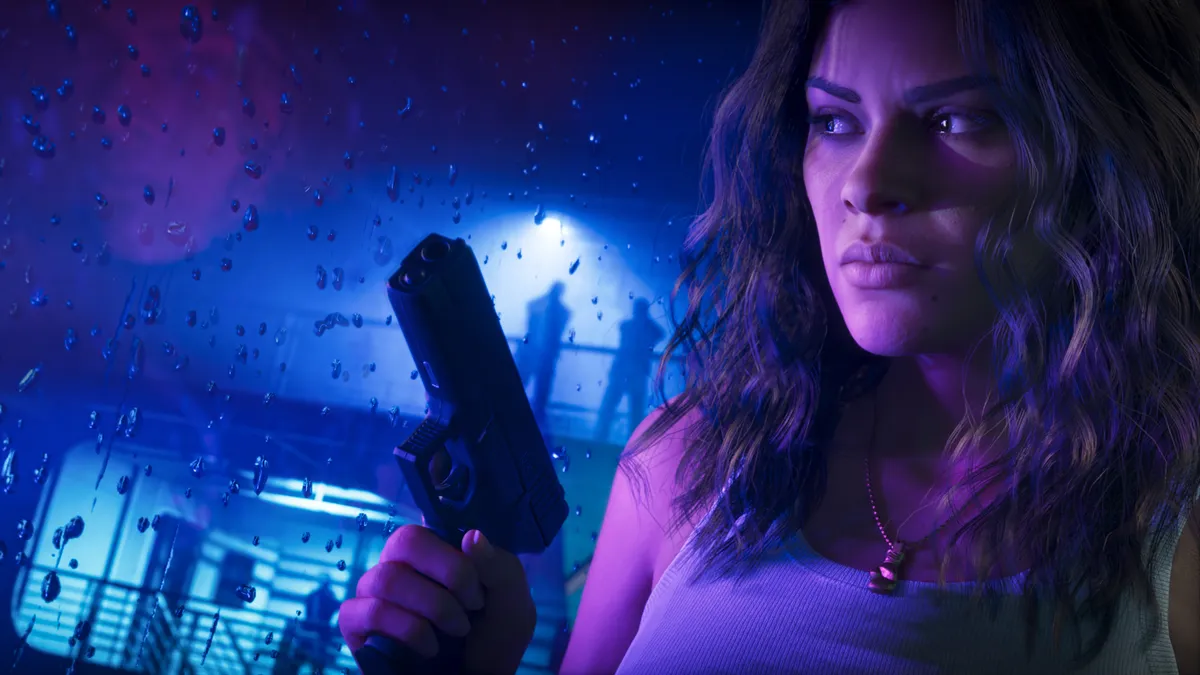
Image courtesy of Rockstar Games
GTA 6 HUD and UI settings
The UI tab decides what is on screen and how big it is: the minimap, markers, subtitles, the crosshair and the pop-ups.
Size and the minimap
- Text and icon size. UI text size, the map and minimap icons, and the markers in the world can all be made bigger. We set Minimap Blip Size and In-World Marker Size to Large (from Default) while you learn the map.
- The minimap can be On all the time, Dynamic or Off. Dynamic, the default, hides it until you are driving, wanted or press Down . The compass, the GPS route and turn indicators, and door and world markers can be changed separately.
Subtitles, crosshair and pop-ups
- Subtitles are off by default. They can be on for all dialogue or just missions, and speaker names help you tell the characters apart.
- The crosshair can be complex, simple, a dot or nothing. Projectile Arc shows where a grenade will land - we set it to On (Toggle Off), so it shows whenever you aim a throw.
- Notifications. Progress pop-ups for new weapons, vehicles, animals and challenges are off by default, and so are street names. Turn them on while you learn the game.
GTA 6 camera settings
The Camera tab sets where the camera sits and how it moves: on foot, in vehicles, in aircraft and underwater.
Height and distance
Height works a bit like field of view - higher shows more of the street around you. There are separate settings for on foot and for vehicles, including the passenger seat. Camera distance can also be changed on the move: hold Down and press Square X .
Comfort
These settings matter most if motion bothers you.
- Weapon Sway is the drift of a raised gun.
- Camera Shake shakes the view in action. We set it to Off.
- Camera Bob moves the view as you walk, run and swim. It runs 0 to 10 and starts at 10; we set it to 5.
Cinematic camera
This sets how often you get a slow-motion kill shot or crash camera, and whether the camera drifts into a cinematic view when you leave the controller alone.
Image courtesy of Rockstar Games
GTA 6 audio settings
The Audio tab sets the volume mix and where sound comes from.
- Controller Speaker on PS5 plays some sounds through the controller, and it is on by default. The police scanner can come through it too. Turn it off if you would rather hear everything from the TV or headset.
- Mute Licensed Music silences the licensed songs, so streams and videos do not get copyright claims.
- Vehicle Radio on Default carries on with whatever a car was playing; Off starts every car quiet.
- Volume has separate sliders for music, dialogue and effects - turning music down a notch makes dialogue easier to hear. There is also a tinnitus reduction option.
New to the game? Getting Started covers the first hours.
Settings & Controls
Frequently asked questions
Does GTA 6 run at 60fps?
No. Rockstar aimed for 30 frames a second, even on PS5 Pro, so 30 is the most to expect on PS5 and PS5 Pro. On the base PS5 it can dip below 30 when a lot is happening on screen.
How do you get GTA 5 controls in GTA 6?
Choose the Classic control scheme in Settings, opened with Options or Menu. By default, running is a click of the left stick; Classic plays the way GTA 5 did. On PlayStation, running and sprinting go to X, melee to Circle, climbing and jumping to Square and crouching to L3. On Xbox, they are A, B, X and LS.
Does GTA 6 have an easy mode?
In effect, yes. Two accessibility options make it easier: Accessible Combat lowers enemy health and the damage enemies deal, and Reduced Vehicle Damage makes your car tougher. Turning them on does not switch off Trophies. Button taps and holds can also be made less demanding, and minigames can be set to a simpler version.
Can you play GTA 6 in first person?
Not all the time. GTA 6 has no dedicated first-person mode, and no cheat adds one. You can look through first person for a moment: hold L2 or LT to zoom in, then click the right stick, R3 or RS. It works when talking to people, walking about or looking through a scope, but not while driving.
Can you remap buttons in GTA 6?
Not freely. GTA 6 does not let you remap controls one button at a time. There are some options, though, such as moving sprint from a click of the left stick back to X or A. GameSpot says you do not need a pro controller, though paddles still help with the weapon wheel and Focus Mode.
Should you turn off motion blur in GTA 6?
It depends on your screen. TechRadar reports that players are split. Many recommend turning motion blur off to see the game clearly. Others say keeping it on is essential on OLED TVs, whose pixels refresh differently from LCD screens. It is a single setting, so it is worth trying both on your own TV.